Liveness Detection API — Quickstart Guide
This guide walks you through the five steps from subscribing on AWS Marketplace to sending your first liveness detection (anti-spoofing) request.
| Item | Value |
|---|---|
| API base URL | https://liveness.api.pas-ta.io |
| Customer dashboard | https://liveness.api.pas-ta.io/console/dashboard |
| Authentication method | X-API-Key header |
| Content type | application/json (UTF-8) |
Step 1. Subscribe on AWS Marketplace
Open the Liveness Detection API by Swallow Incubate product page on AWS Marketplace.
https://aws.amazon.com/marketplace/pp/prodview-24ciftyaakrsa
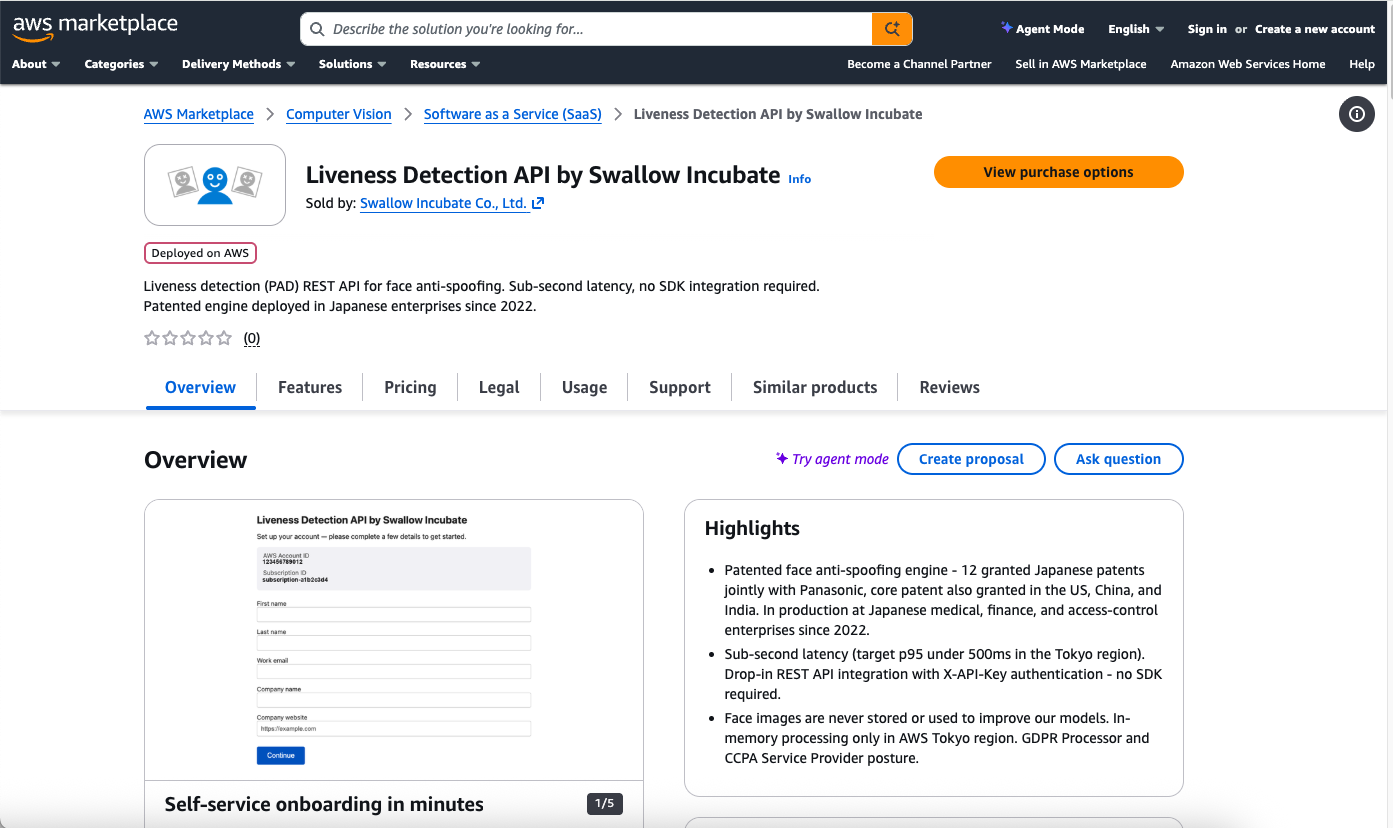
Sign in with the AWS account you want to use for this subscription. Click Sign in at the top right and enter your AWS account credentials.
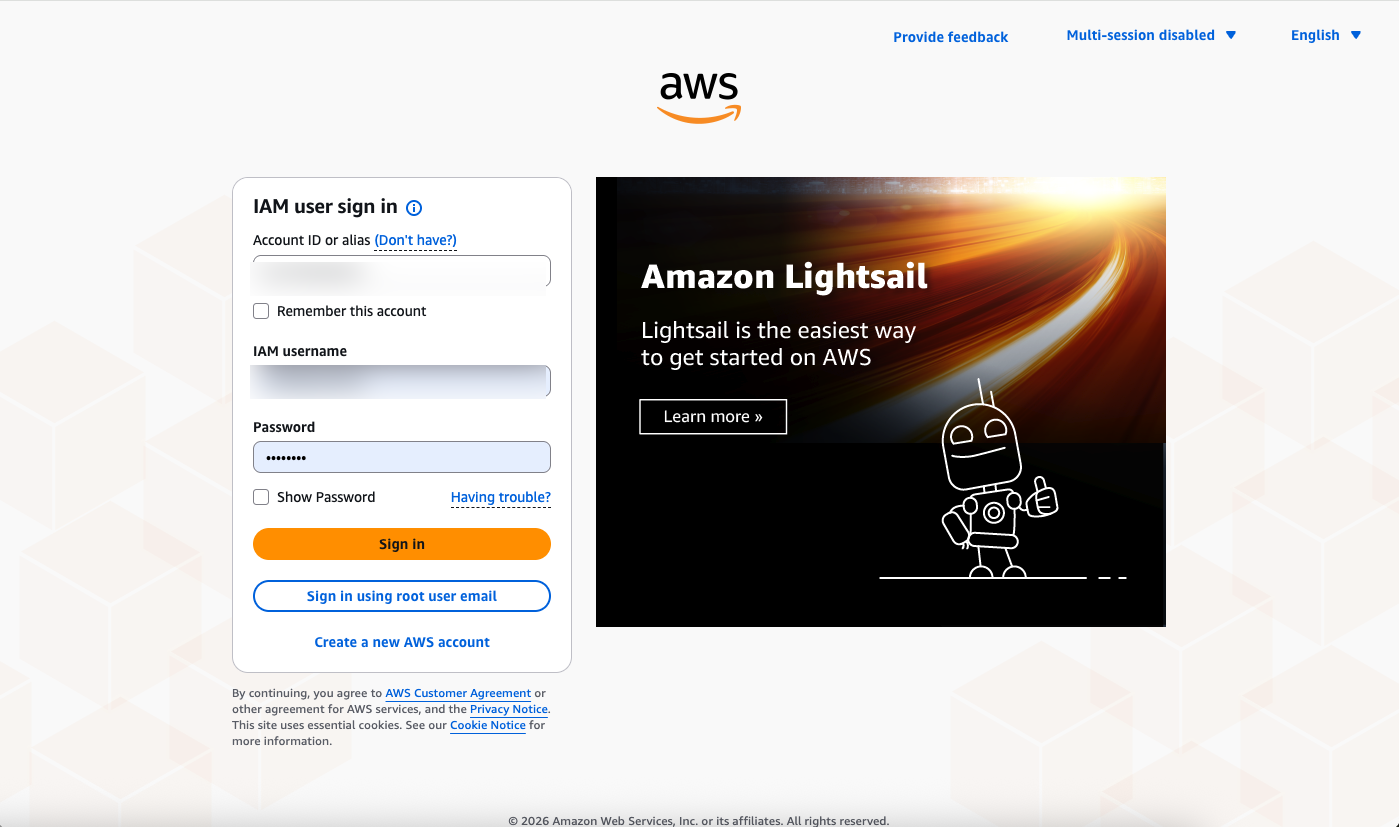
Once you have signed in, you are returned to the product page with “Hello, <account name>” shown at the top right.
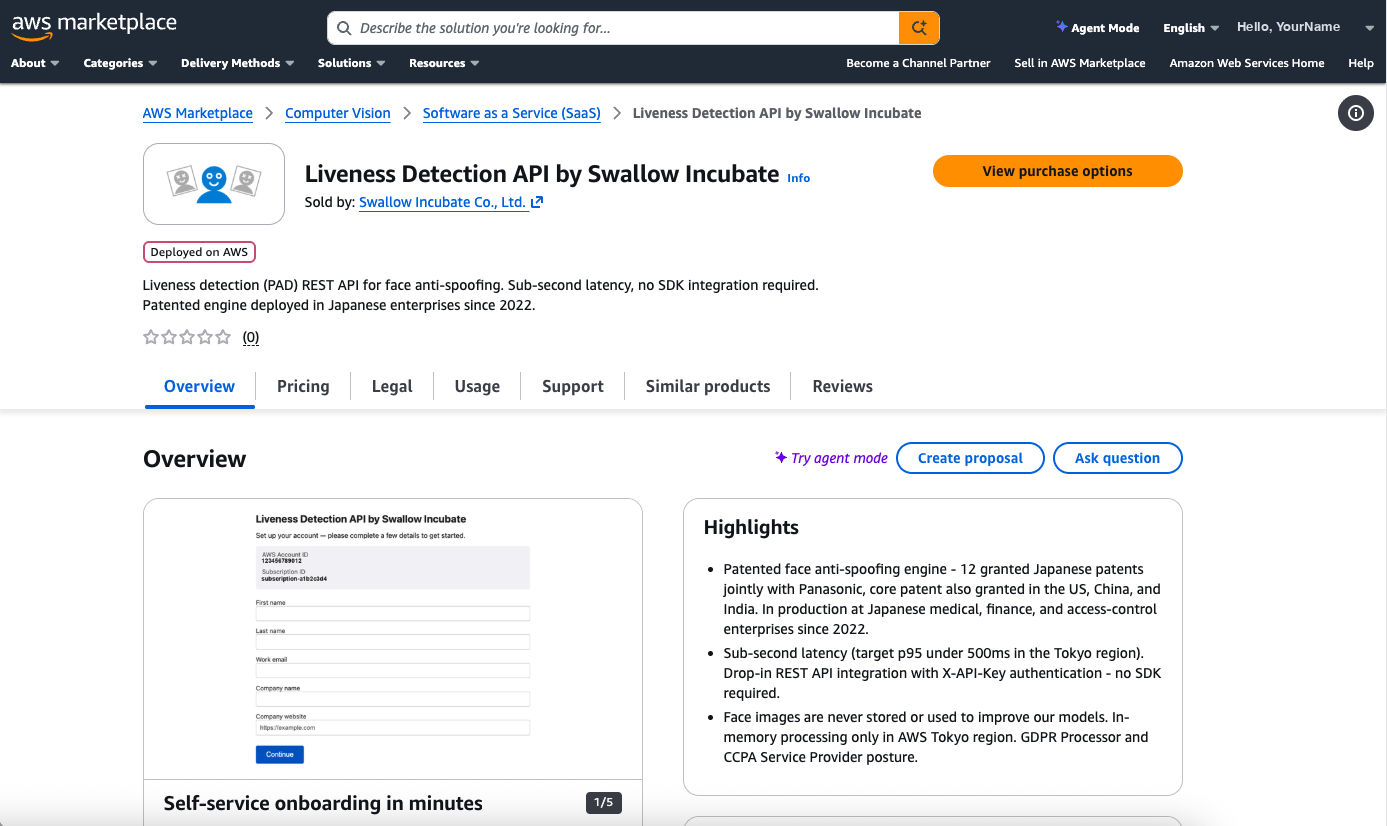
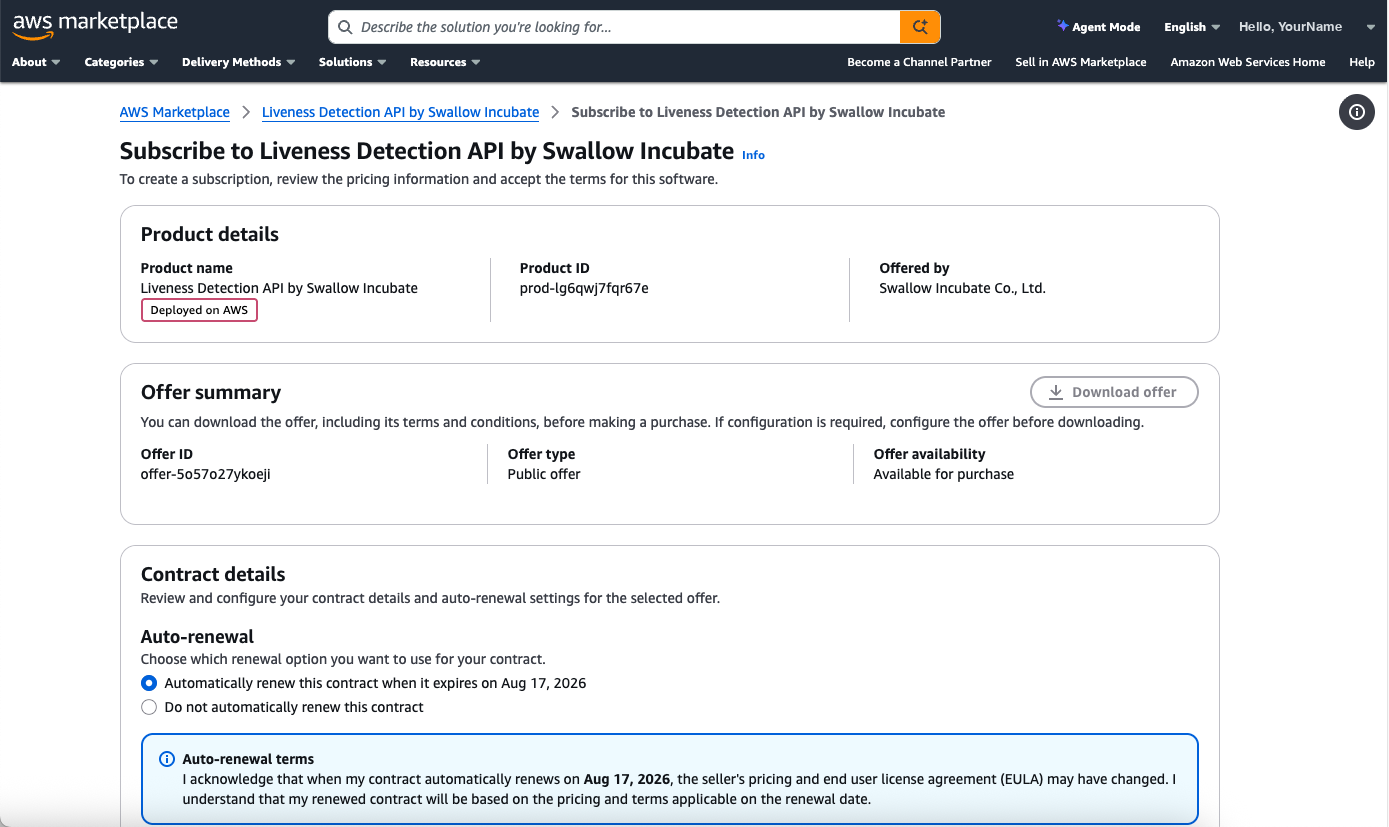
Click View purchase options to open the subscribe screen, then choose whether to enable Auto-renewal.
Scroll down and select a plan under Dimensions. To evaluate the product at no cost, select Free.
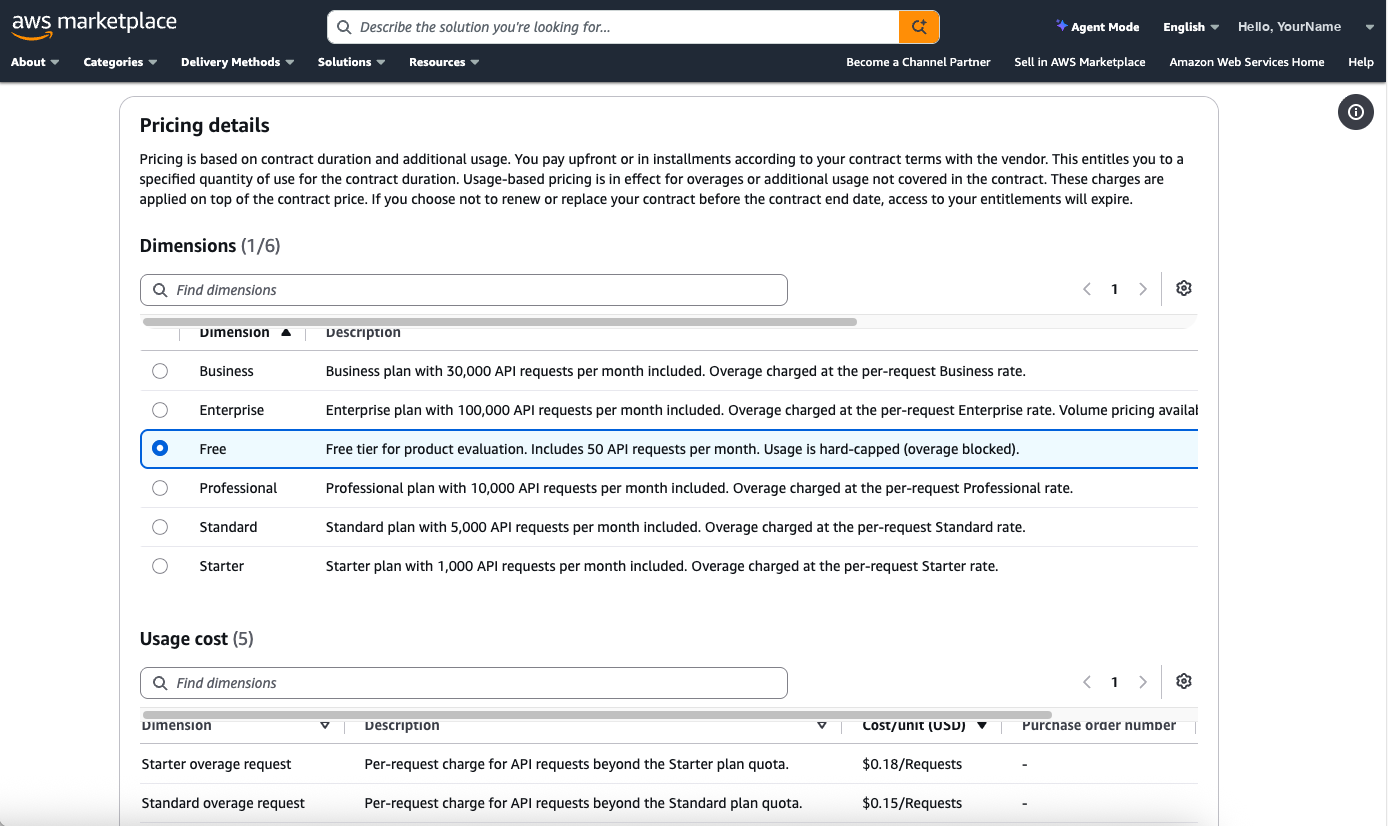
Plan Monthly calls Monthly price Overage per call Free (evaluation) 50 $0 Not available (hard cap always on) Starter 1,000 $180 $0.18 Standard 5,000 $750 $0.15 Professional 10,000 $1,200 $0.12 Business 30,000 $2,400 $0.08 Enterprise 100,000+ (custom) $5,000+ $0.05 Note: On plans other than Free, the behavior when you exceed the limit (continue on a pay-as-you-go basis / stop the API) can be switched later from the dashboard.
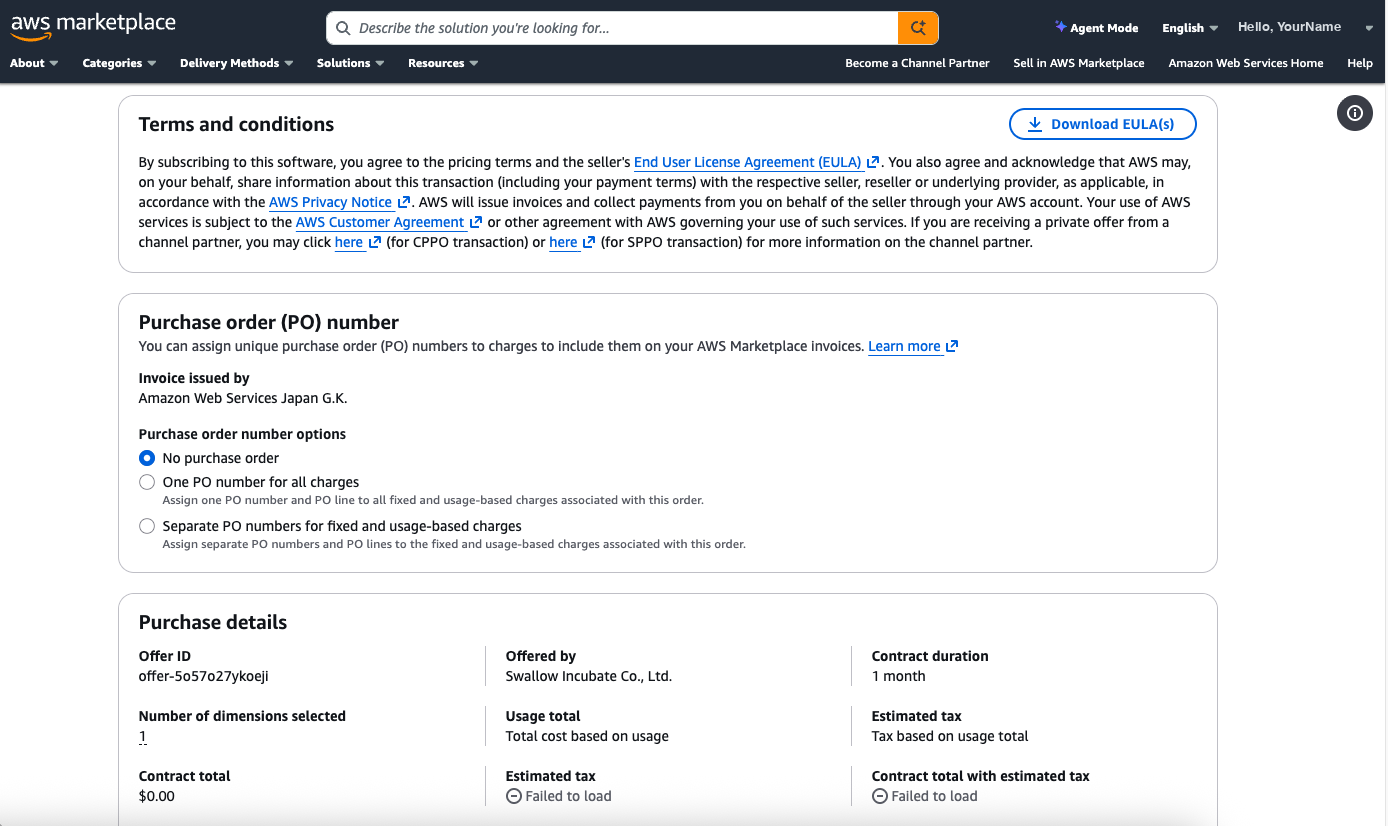
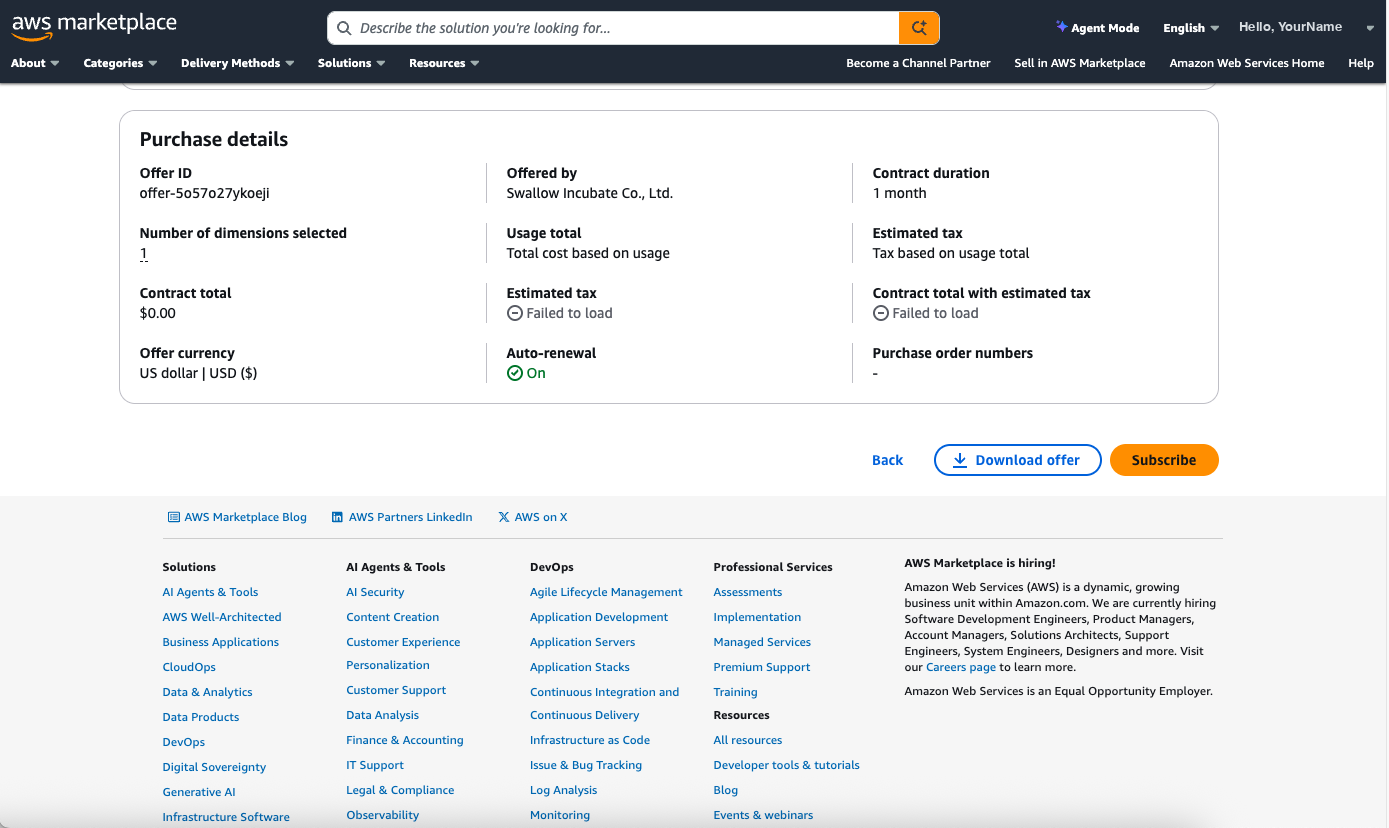
Note: Private Offers are available for customers in Japan. Please contact Support if you are interested.Scroll down further and review Terms and conditions (EULA), Purchase order (PO) number, and Purchase details.
Click the Subscribe button at the bottom of the page.
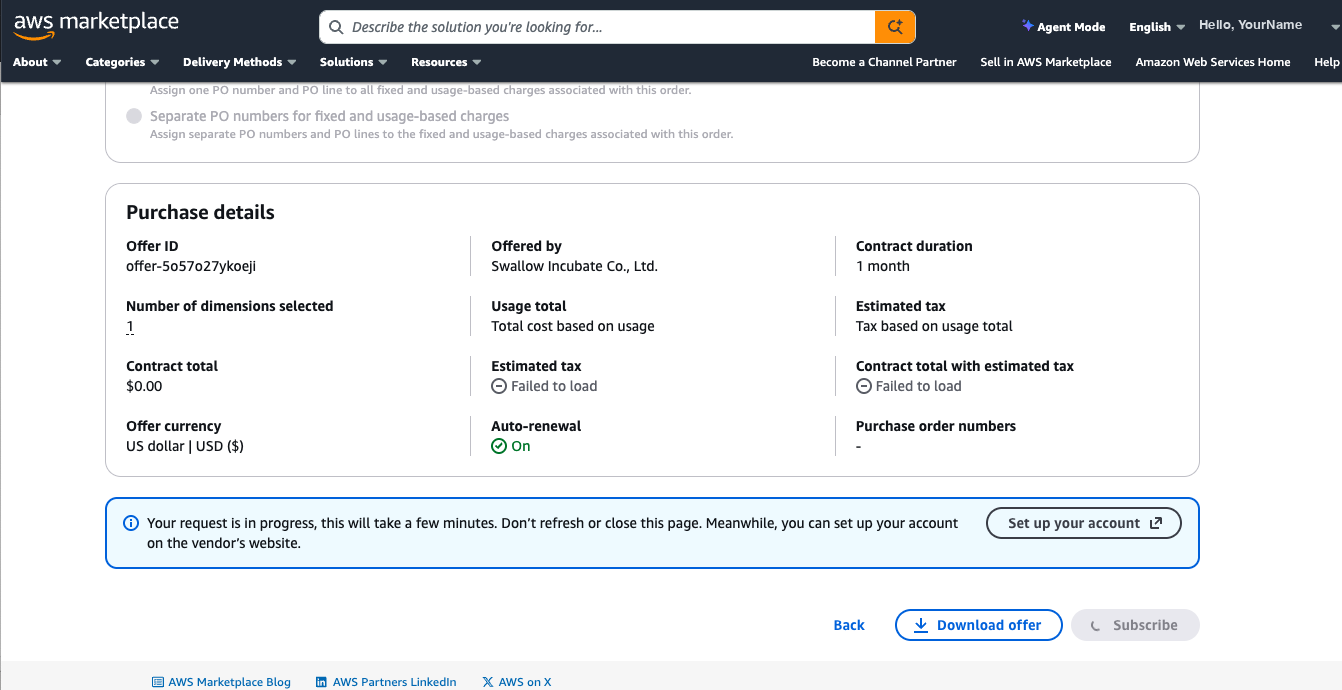
“Your request is in progress” appears while the contract is being created. The purchase confirmation screen appears after a few minutes.
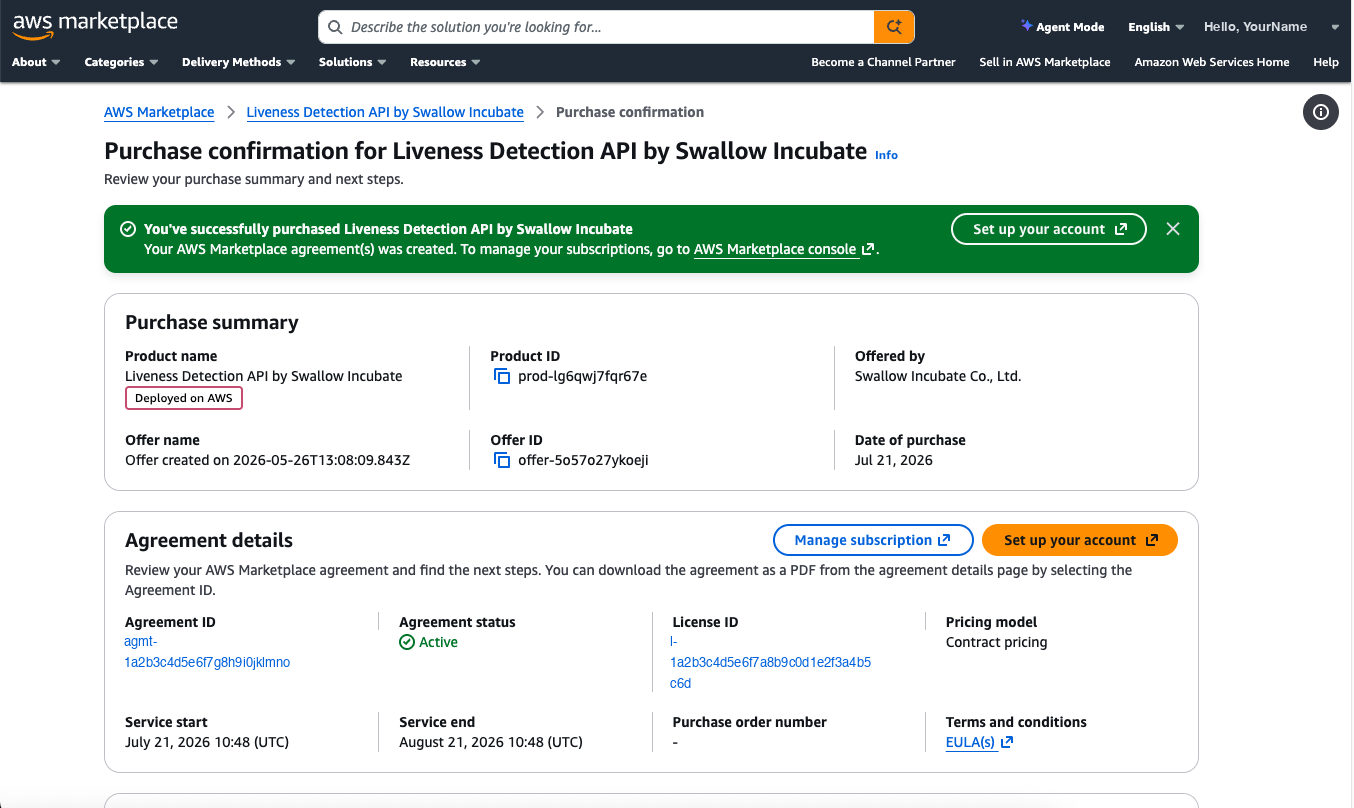
Step 2. Register your account information and verify your email
Click Set up your account on the purchase confirmation screen to open our onboarding screen (you can also open it from the in-progress screen in Step 1-7).
You are taken to a registration screen where your AWS Account ID and Subscription ID are filled in automatically. Enter the following items and click Continue.
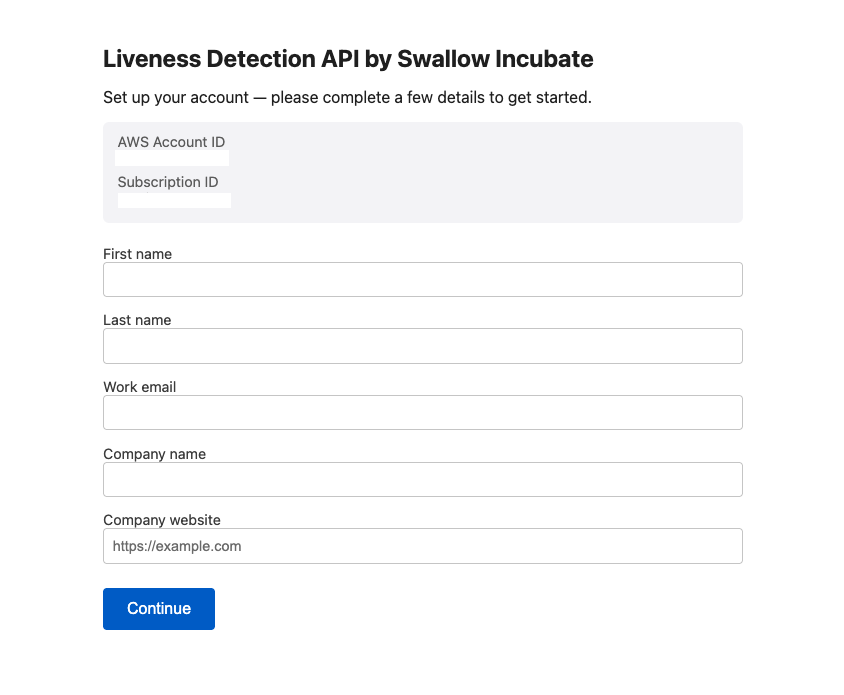
Item Required Notes First name / Last name Required Name of the person in charge Work email Required This becomes your login ID and the destination for various notifications Company name Required Company website Required In the format https://example.comA verification link (valid for 24 hours) is sent to the email address you registered.
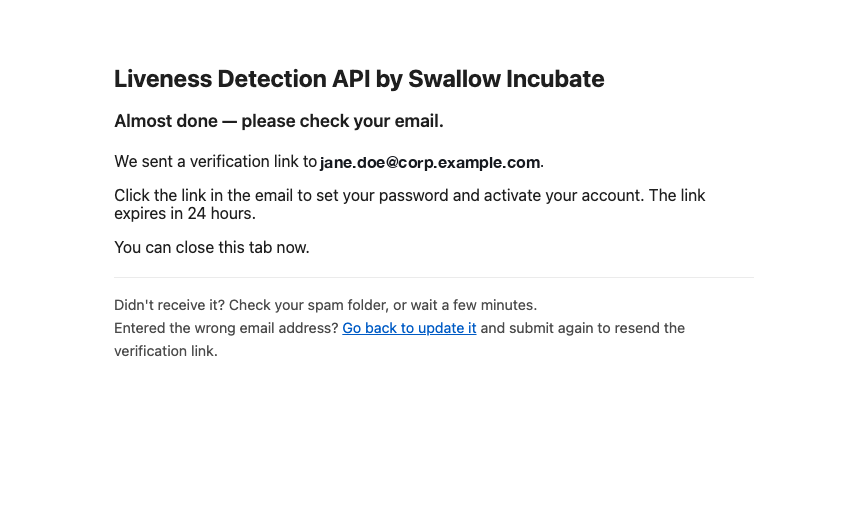
Open the URL in the email you receive.
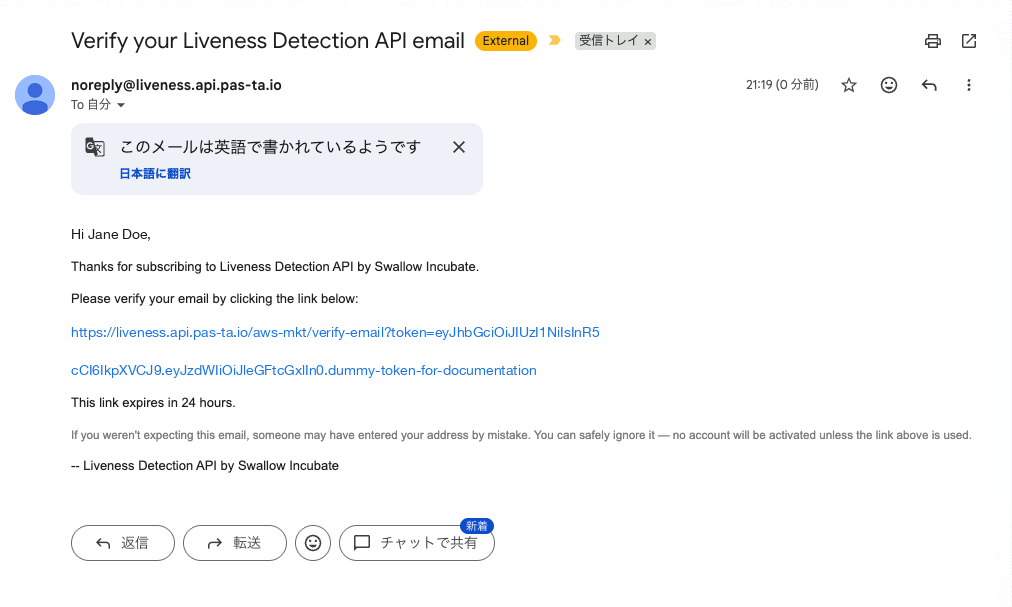
If the email does not arrive, please check your spam folder. The sender is
noreply@liveness.api.pas-ta.io.
Step 3. Set a password and save your API keys
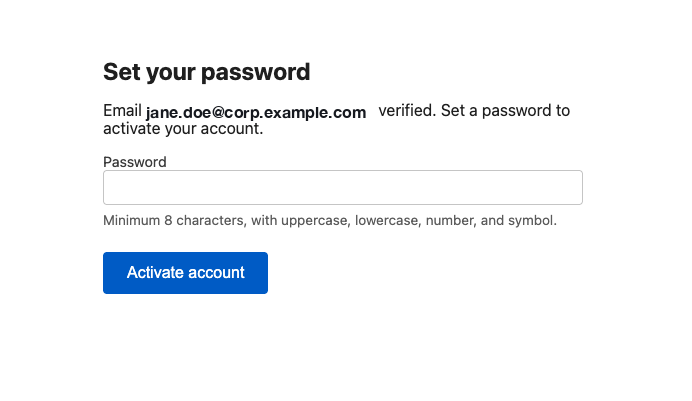
The verification link takes you to the password setup screen. Set a password with at least 8 characters, including at least one uppercase letter, one lowercase letter, one number, and one symbol, then click Activate account.
Your account is activated and two API keys, Primary and Secondary, are displayed. Save both keys before you click Go to console.
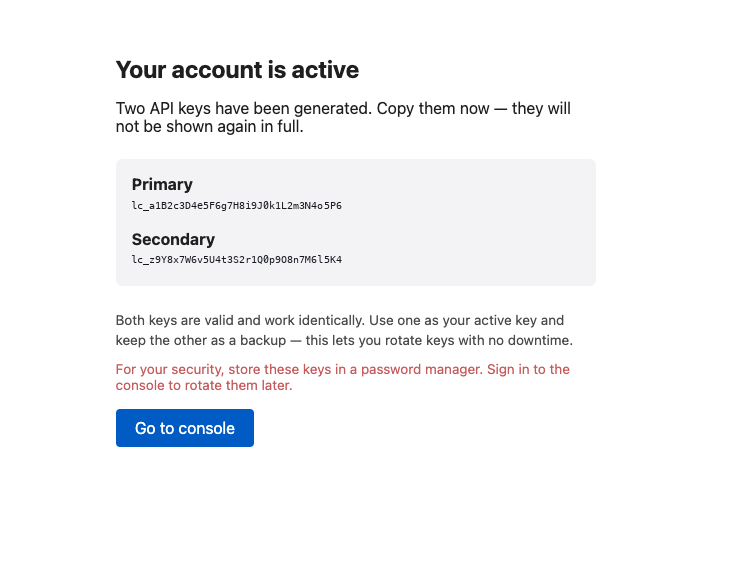
⚠️ This is the only screen where the API keys are shown in full. Once you leave it, the full keys can never be displayed again (the dashboard shows only the leading prefix, such as
lc_a1B2c…). Store them in a password manager.If you did not save them, issue new keys with Regenerate on the dashboard (the old key is invalidated immediately, and the new key is shown once, on the spot).
About the two-key scheme: Normally, you use the Primary key. In the unlikely event that a key is leaked, you can rotate without downtime by using the Secondary key while you swap out your code and then regenerating the Primary key.
Step 4. Sign in to the console and set up two-factor authentication
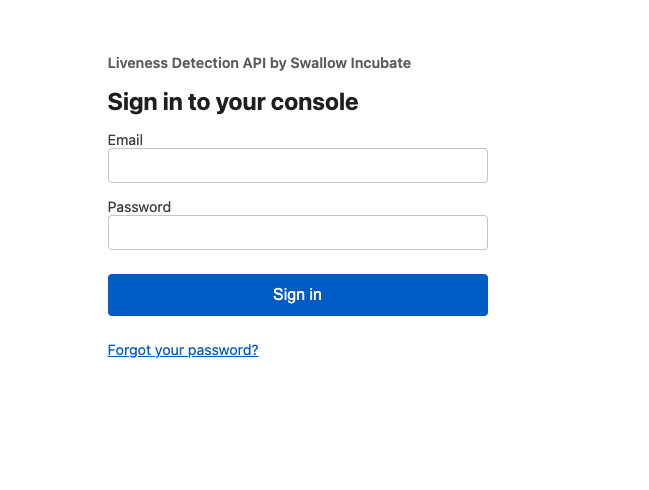
On the sign-in screen, enter the email address you registered in Step 2 and the password you set in Step 3, then click Sign in.
The two-factor authentication (TOTP) setup screen appears. Scan the QR code with an authenticator app such as Google Authenticator, Authy, or 1Password, enter the 6-digit one-time password, and click Verify and enable.
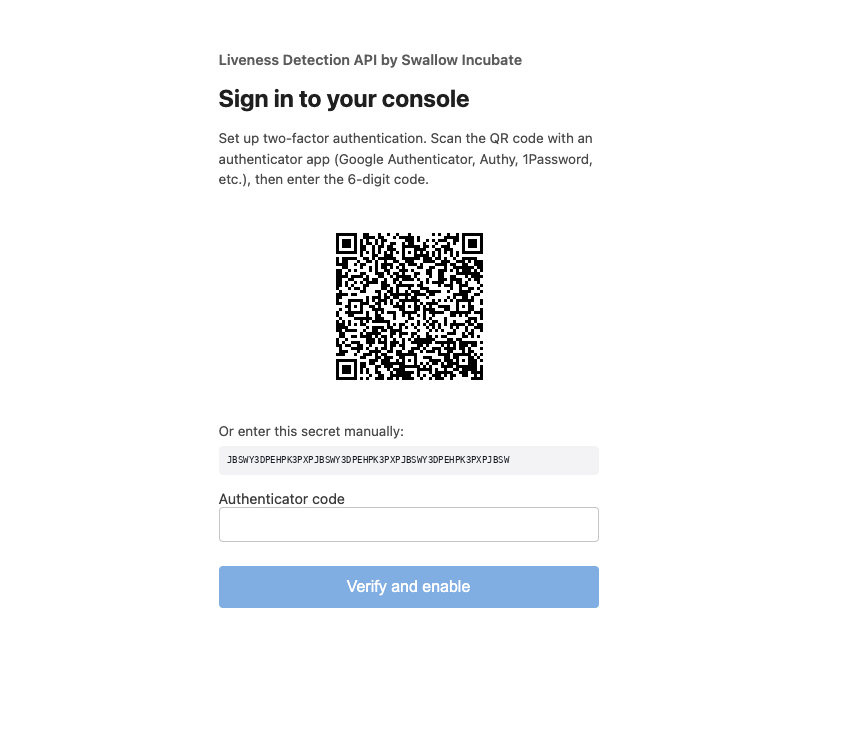
Setting up two-factor authentication is mandatory. If you cannot scan the QR code, enter the string shown under “Or enter this secret manually” into your authenticator app by hand.
Once setup is complete, you can sign in to the customer dashboard, where you can check your plan, the current month’s usage, and the status of your API keys.
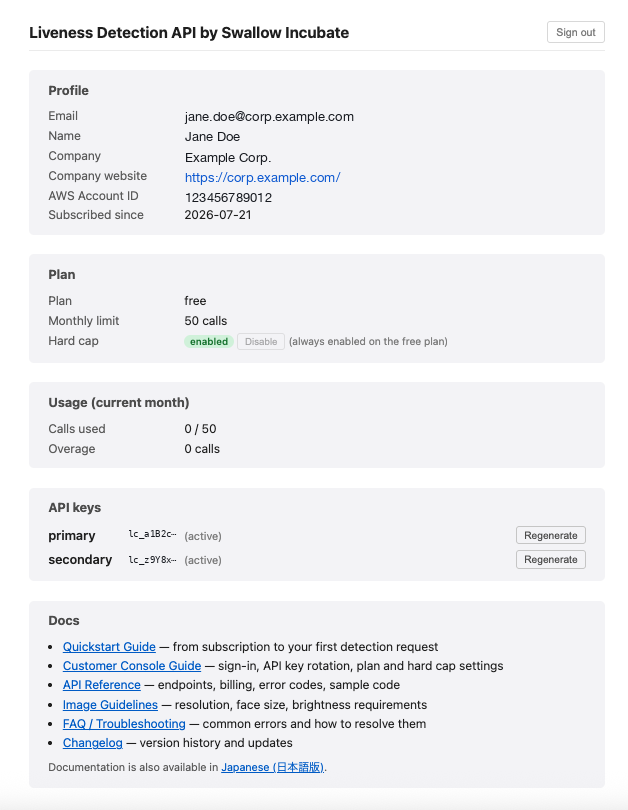
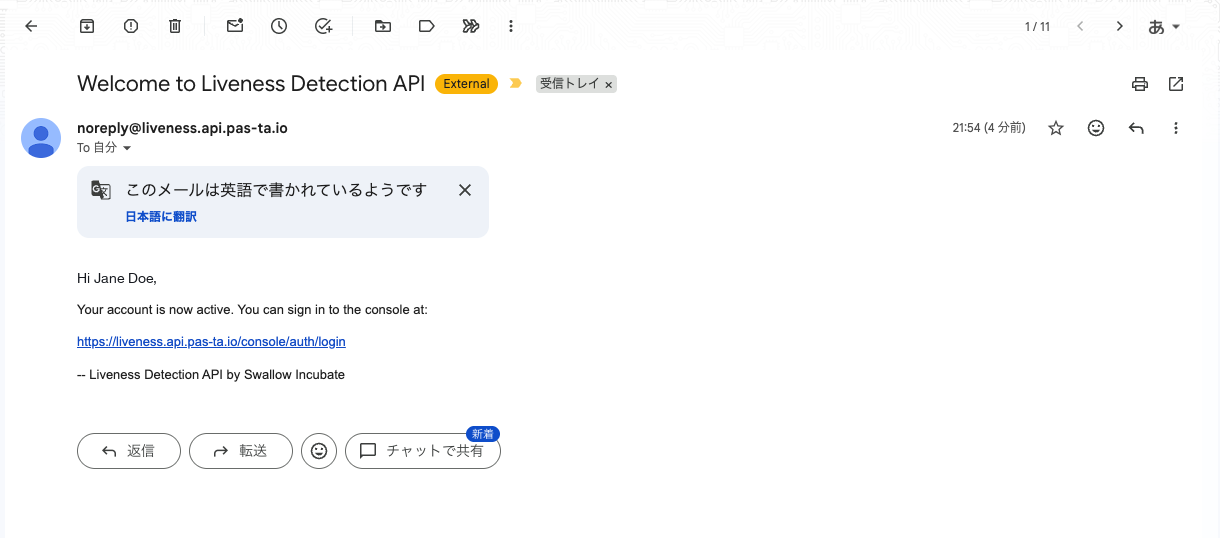
You will receive a welcome email. From then on, sign in at the following URL.
https://liveness.api.pas-ta.io/console/dashboard
Step 5. Send your first detection request
Base64-encode the face image and send it to POST /v1/check/liveness.
① Basic form (for small images)
curl -X POST https://liveness.api.pas-ta.io/v1/check/liveness \
  -H "X-API-Key: {your API key}" \
  -H "Content-Type: application/json" \
  -d '{"image": "{Base64-encoded image}", "image_format": "jpeg"}'
② For large images (up to 10 MB)
# Base64-encode the image and pass the body via stdin (macOS: base64 -i / Linux: base64 -w0)
{ printf '{"image": "'; base64 -i face.jpg | tr -d '\n'; printf '", "image_format": "jpeg"}'; } \
| curl -X POST https://liveness.api.pas-ta.io/v1/check/liveness \
  -H "X-API-Key: {your API key}" \
  -H "Content-Type: application/json" \
  --data-binary @-
If ① fails with
argument list too long, use ②: Expanding the Base64 string directly into an argument hits the shell’s argument-length limit (as a rule of thumb, once the source image exceeds a few hundred KB), and the command cannot run at all. The stdin approach in ② works up to the API’s 10 MB limit (tr -d '\n'is required to keep the JSON valid).
| Field | Required | Description |
|---|---|---|
image |
○ | Base64-encoded image (up to 10MB) |
image_format |
○ | "jpeg" or "png" |
Example response (200 OK):
{
  "metadata": {
    "ver": "1.0.1",
    "customer_id": "550e8400-e29b-41d4-a716-446655440000",
    "remaining_calls": 3850,
    "over_limit_calls": 0,
    "status": "success"
  },
  "data": {
    "isFakeFace": false,
    "isFakeLikelihood": 0.987,
    "isValidFace": true,
    "faceBrightness": 142.3,
    "latency_ms": 120
  }
}
How to read the Processing Result: isFakeFace (true = suspected photo or spoof) is a reference verdict that becomes true when isFakeLikelihood (a score from 0.0 to 1.0) exceeds the default threshold of 0.15. For stricter operation, evaluate isFakeLikelihood against a threshold on your side.
About billing: Only successful detection responses are counted as calls. Error responses (4xx/5xx), GET /v1/usage, GET /v1/health, and dashboard operations are not counted.
Next steps
- Check your usage:
GET /v1/usage(returns the current month’s call count, remaining credits, and plan). - Common errors:
401 invalid_api_key(invalid key) /400 invalid_image(no face detected or corrupted image) /429 quota_exceeded(limit reached with the stop setting enabled). See the FAQ for details. - Rate limits: In addition to the monthly credit limit per plan, there is overall throttling for fair use (429). This is not an individual guarantee of an instantaneous rate.
- Managing from the console: See the Customer Console Guide for regenerating API keys and checking your plan and usage.
- Need help?: See Support (Liveness Detection API: liveness-api@swallow-incubate.com).